Audio Clips Generator
Upload a song and generate multiple beat-locked clips — 6, 10, 30 pieces. Drop the ZIP onto Premiere, DaVinci, CapCut or any timeline.
Beat Detection • Numbered Clips • No Signup • No Watermarks • Free Forever
You might also like
Master the skill behind Audio Clips Generator
Free step-by-step lessons with diagrams, examples and camera settings.
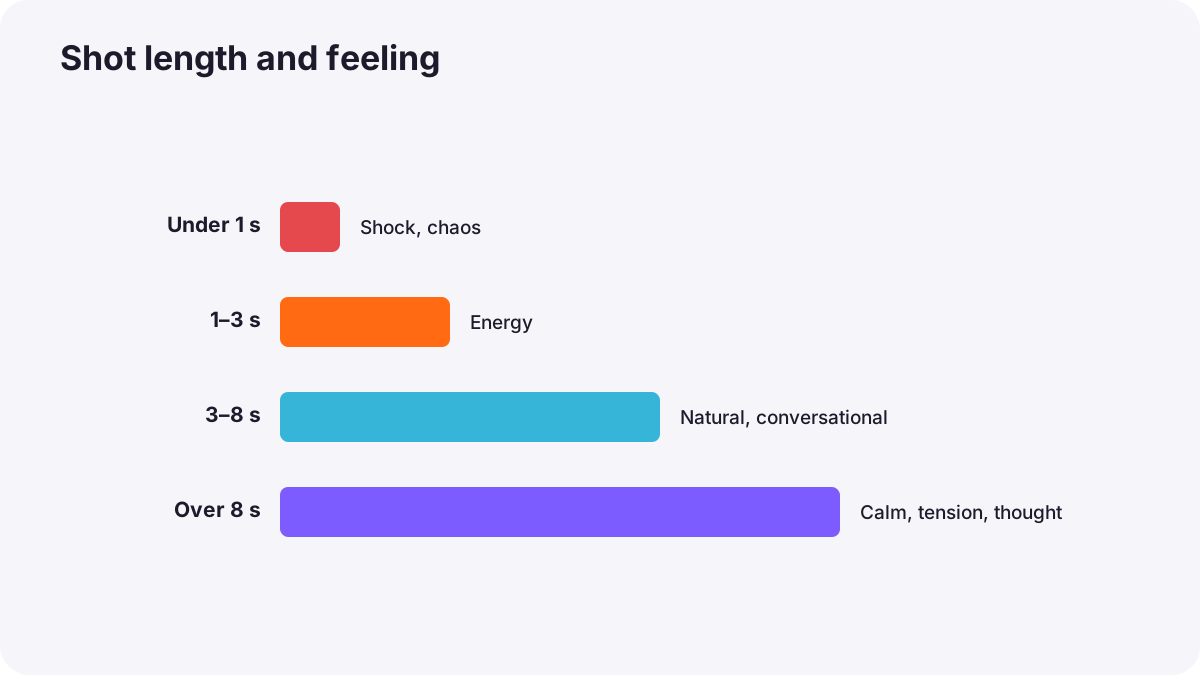
Learn pacing and rhythm in editing: how shot length controls energy, how long to hold shots, cutting to music, varyin…
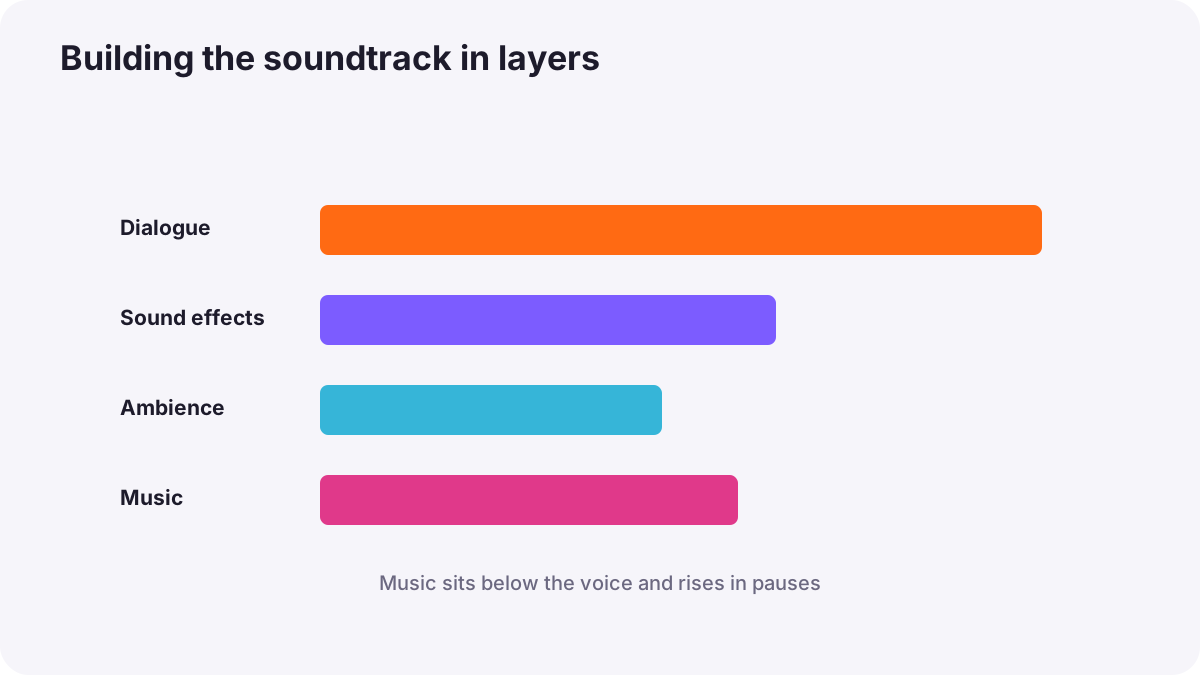
Learn to build a video soundtrack: choosing music for mood, editing music to picture, sound effects and Foley, layeri…
What is Audio Clips Generator?
Audio Clips Generator takes a window of a song and splits it into multiple numbered clips locked to the real beats, energy, and tone changes in the music — 6 clips, 10 clips, 30 clips, whatever the pattern makes. You download a ZIP of 01, 02, 03… and drop them onto a timeline in order. Each file is one shot, so the picture cut is already decided by the audio. This is not a trimmer that gives you one file.
It is built for editors who want beat-synced reels without installing a plugin. Premiere Pro, DaVinci Resolve, Final Cut and CapCut all accept the clips. The clips follow the song's actual hits, so the loud and changing beats line up with your cuts — not a fixed metronome.
You choose the length (15 seconds is the usual reel), and the tool highlights the strongest stretch of the song. Drag that window if you want a different chorus or drop. Patterns cover every beat, bars, downbeats, kick (bass) hits, top-energy (loudest) hits, build-ups, and an exact piece count.
Everything runs in your browser. The song is decoded on your device, the beats are measured there, and the ZIP is built there. Nothing is uploaded.
Complete Step-by-Step Guide
How to cut a song into timeline-ready clips.
Upload Your Song
Choose an audio file (MP3, WAV, M4A). It is processed locally; nothing is uploaded.
Set the Length
Pick 10, 15, 20, 30, 45 or 60 seconds. The strongest part of the track is selected. Drag the highlight if you want another section.
Choose a Pattern
Try Top-energy for cuts on the loudest hits, Kick for bass hits, Every 2nd beat for a steady reel feel, or bars, downbeats, build-ups and an exact piece count.
Download the ZIP
Export MP3 or WAV. Drop 01, 02, 03… onto the timeline from left to right and cut the picture where each clip ends.
Frequently Asked Questions
Ten common questions about this tool, answered.
What does Audio Clips Generator export?
A ZIP of numbered audio files (01.mp3, 02.mp3, and so on) plus a cuts.txt file with the times. The number of files depends on the pattern — every beat, every 2nd, every bar, or an exact count. Each file is one beat-aligned shot.
Why separate files instead of one track?
Many editors cannot install a beat plugin. Separate clips mean the cuts are already made. Place them in order and match your video to each file.
Which editors can use the ZIP?
Premiere Pro, DaVinci Resolve, Final Cut Pro, CapCut and any editor that imports MP3 or WAV. Sort order is 01, 02, 03 so the sequence stays correct.
Does it cut exactly on the beat?
It detects onsets with a spectral-flux method and places cuts on the real hits — so the loud and changing beats line up with your cuts. Songs with a clear kick or snare lock tightest. Soft ambient tracks fall back toward even spacing, and the waveform shows the cuts before you export.
Can I choose how many pieces?
Yes. Use Exact count or Equal lengths and set the target. Other patterns follow the beat and tell you how many clips that produces.
What is the Every 2nd pattern?
It keeps every other detected hit. On a typical reel track that lands near the quarter-note pulse: short, even shots that feel cut to the music.
Is my audio uploaded?
No. Decoding, beat detection, cutting and encoding all happen in your browser. The file never leaves your computer.
MP3 or WAV?
MP3 is smaller and what most timelines expect. WAV is faster to export and lossless. Both are included.
Does it work on mobile?
Yes, in a mobile browser. Long songs and many MP3 clips take longer to encode on a phone, so WAV is the quicker choice there.
Is it free?
Yes — completely free, no watermark, no sign-up.