AI Color Match Generator
Upload any photo to instantly extract its cinematic color grading and apply it perfectly to your own images.
Visually Lossless Export • 100% Free • No Watermarks
You might also like
Master the skill behind AI Color Match Generator
Free step-by-step lessons with diagrams, examples and camera settings.
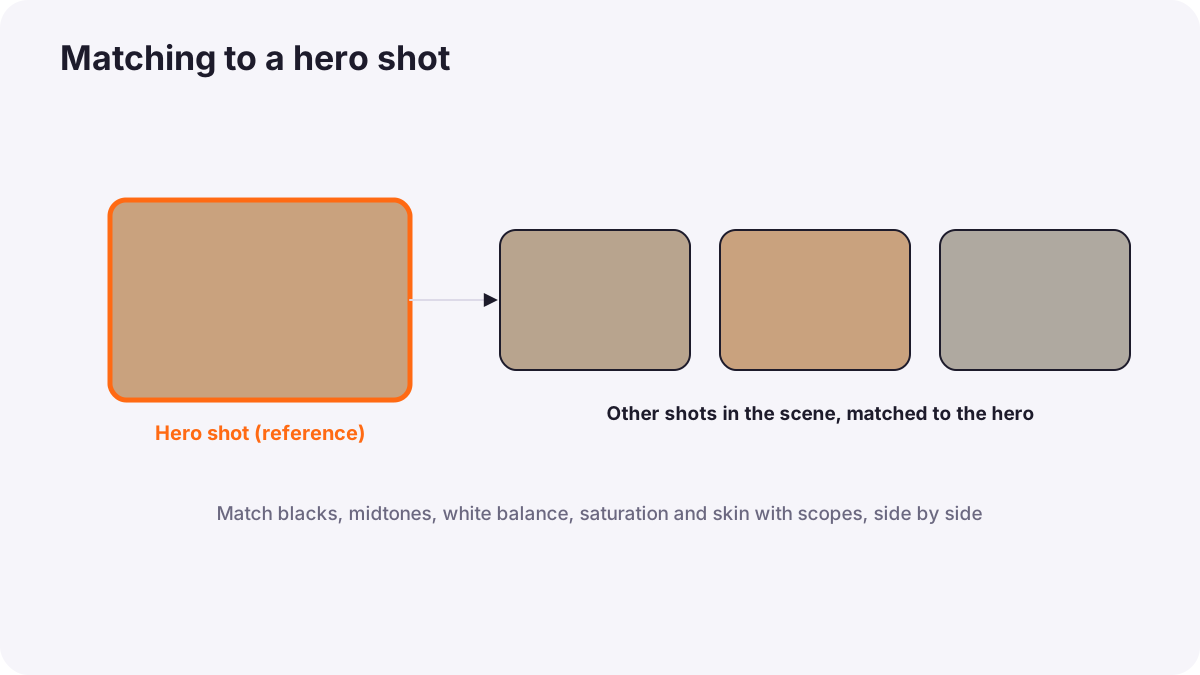
Learn to match shots and cameras in grading: choosing a hero shot, matching with scopes, side-by-side comparison, col…
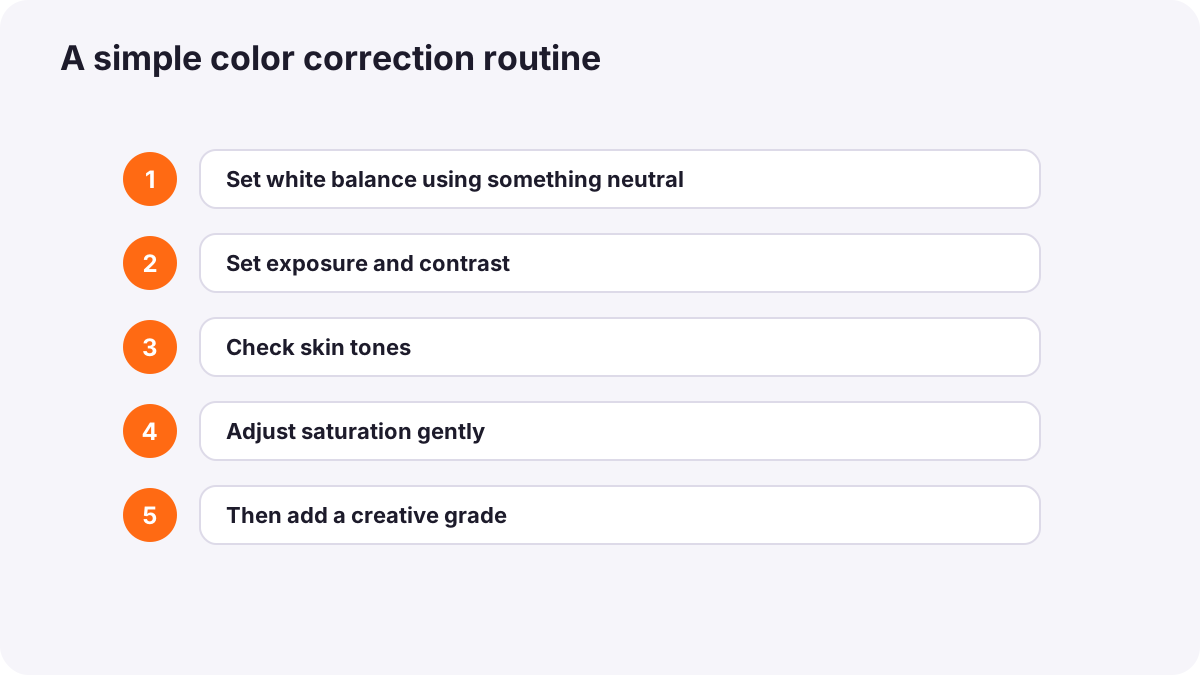
Learn the difference between color correction and creative grading, why you correct first, how HSL and color wheels w…
What is the AI Color Match Generator?
The AI Color Match Generator is a free, browser-based tool that copies the color grade from one photo and applies it to another. You give it a reference image — a cinematic movie still, a photographer's edit, or any picture whose colors you love — and a target image of your own, and it transfers the reference's look onto your photo automatically.
This solves a real problem: you can see the mood you want in someone else's image, but recreating it by hand means guessing at dozens of slider values. The tool's local AI model analyses the reference's luminance curves and color tone mapping — how it treats shadows, midtones, and highlights — and maps that grade onto your target, so you get the look without the guesswork.
Both images are processed locally in your browser and never uploaded. After the match, you control the intensity, protect luminance so your photo does not get unnaturally darker or lighter, and fine-tune exposure, contrast, and saturation by hand — then export a high-resolution, watermark-free result.
Complete Step-by-Step Guide
Follow along step by step and you'll have your result in minutes.
Select Your Reference Photo
Start with the look you want to steal. Upload a Reference image — a cinematic film still, a favourite photographer's edit, or any picture whose colors you admire. This is the source of the grade, not part of your final image.
Select Your Target Photo
Now upload your Target image — the photo of yours that you want to transform. The tool will apply the reference's color grade to this image. Click Start to run the match.
Let the AI Extract & Apply the Grade
The local AI model analyses the reference photo's luminance curves and color tone mapping across its shadows, midtones, and highlights, then applies that extracted grade to your target image — all on your device, with nothing uploaded.
Tune the Match (Match & Adjust Tabs)
In the Match tab, set the Color Match Strength from 0 to 100 to control how strongly the reference look is applied, and enable Protect Luminance to keep the tool focused on color hue without making your image significantly darker or lighter. The Adjust tab adds manual Exposure, Contrast, and Saturation (−100 to +100), with a Reset to start over.
Swap Images if Needed (Media Tab)
Use the Project Media tab to change the reference or the target. You can try the same target against several references, or apply one reference look to several of your own photos for a consistent set.
Export in High Resolution
When the match looks right, hit Download to export your graded target image in high resolution. It is completely free and watermark-free.
Frequently Asked Questions
Everything creators usually want to know, answered here.
How is this different from a normal filter?
A filter is a fixed, pre-made adjustment. This tool creates a custom grade on the fly by analysing a reference image you choose, then transferring that specific look to your photo. Because the grade comes from a real image you love rather than a preset, you can match almost any aesthetic — including looks no filter pack contains.
Which image is the reference and which is the target?
The reference is the image whose colors you want to copy — a movie still or a photographer's edit, for example. The target is your own photo that you want to transform. The reference is never part of your output; it only supplies the color grade that gets applied to your target.
Are my images uploaded to a server?
No. Both the reference and the target are processed locally in your browser by an on-device AI model. Neither image leaves your device, which keeps your work private and removes any upload waiting time.
What does 'Protect Luminance' do?
It stops the color match from significantly changing how bright or dark your target image is, keeping the tool focused purely on transferring color and hue. This is useful when a reference image is much darker or lighter than your photo and you want its color mood without inheriting its brightness.
What if the match looks too strong?
Lower the Color Match Strength slider. At full strength the reference look is applied aggressively; pulling it back blends the grade more gently with your original image, which often gives the most natural, believable result. There is no single correct value — adjust to taste.
Can I match several photos to the same look?
Yes. Keep the same reference and swap in different target photos using the Project Media tab. Applying one reference grade across several of your images is exactly how you build a consistent, cohesive set or feed.
Does it work with any style of reference?
It works best when the reference has a clear, distinctive color character — warm and teal-orange, cold and desaturated, vintage and faded, and so on. Any image can be a reference, but a strongly-graded one gives the AI a clearer look to extract and produces a more obvious transformation.
Will the export be high resolution?
Yes. The tool applies the grade to a full-quality version of your target and exports in high resolution, so your final image stays sharp and ready for print, web, or social use.
Is there a watermark on the result?
No. Your exported image is completely clean with no watermark or branding, and it is free to use in commercial, client, or personal projects.
Do I need any editing skill to use this?
No. The whole point is to skip the manual grading skill — you pick a look you like and the AI does the color science. The optional Adjust sliders are there if you want to fine-tune, but the core match is fully automatic.